Image file types fall into two families. Raster files, like PNG, JPG and WebP, are made of pixels and have a fixed size. Vector files, like SVG, AI and EPS, are made of shapes and can be enlarged without losing quality. PDF can hold either. The right choice depends on where the image is going: your website, social media, a print shop or your designer. If a sign shop has ever asked you for “a vector file,” or you’ve watched your logo turn fuzzy on a banner, this post is for you.
Here’s what each file type is, when to use it, and what to keep on hand so you always have the right version.
Raster vs. Vector: The Difference That Matters Most
A raster image is a grid of tiny colored squares called pixels. Photos are always raster images. Every raster file has a set number of pixels, so when you enlarge it past that size, the computer has to guess at the missing detail. That’s when edges turn blurry or blocky. A vector image is built from shapes, lines and curves defined by math rather than pixels. You can scale a vector logo to fit a business card or a billboard and it stays perfectly sharp. Logos, icons and illustrations should always start as vector files.
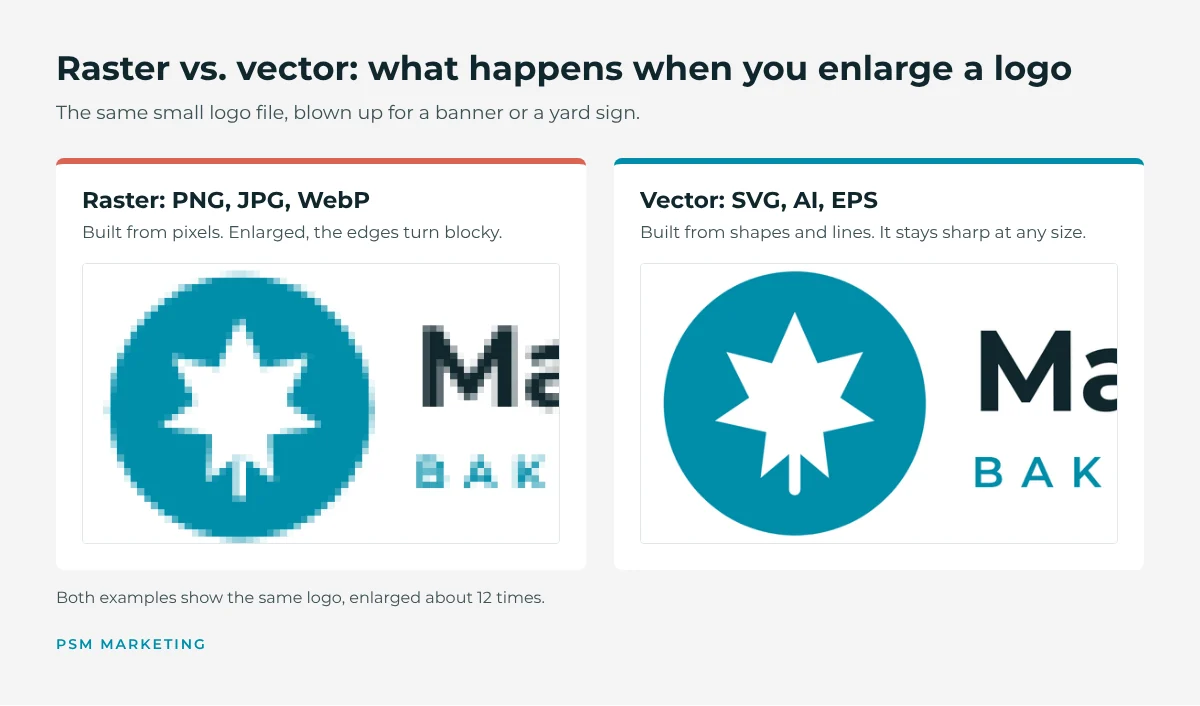
You can always turn a vector file into a raster one by exporting a PNG or JPG. Going the other way is harder. Turning a pixel image into a true vector file usually means having a designer redraw it.
The Common Image File Types, Explained
JPG (or JPEG): for photos
JPG is the standard format for photographs. It keeps file sizes small by permanently discarding detail you’re unlikely to notice in a photo. On flat colors and text, though, that lost detail shows up as smudges and fuzzy halos. JPGs also can’t have a transparent background, and they lose a little more quality every time they’re edited and saved again. Keep your original photo, and save a new copy for each use. Use it for: photos on your website, social media and email. Avoid it for: logos, icons and graphics with text.

PNG: for logos and graphics on screens
PNG keeps every pixel exactly as it was, so edges and text stay crisp. It also supports transparent backgrounds, which is why it’s the go-to format for a logo you’ll place on a website, slide or social graphic. The tradeoff is file size. A photo saved as a PNG can be several times larger than the same photo as a JPG, which slows down your website. Use it for: logos, icons, screenshots and graphics with text, anywhere on screen. Avoid it for: large photos, and professional printing when a vector file is available.

WebP: for faster websites
WebP is a newer format developed by Google. It produces noticeably smaller files than JPG or PNG at similar quality, supports transparent backgrounds, and works in all modern web browsers. WordPress supports it too. Smaller images mean faster pages, which matters for both visitors and search rankings. Google’s WebP overview explains how it works. Use it for: photos and graphics on your website. Avoid it for: printing, and sending files to people who may be using older software that can’t open it.
SVG: vector graphics for the web
SVG is a vector format made for websites. An SVG logo looks sharp on every screen size, and the file is usually tiny. It can’t hold a photo, though. One catch: WordPress blocks SVG uploads by default for security reasons, so your website developer may need to enable them safely before you can use one. Use it for: logos and icons on your website, and as a vector file for some print vendors. Avoid it for: photos.
PDF: for documents and print
PDF is the universal format for documents, and the one most printers want for brochures, flyers and business cards. A PDF can contain vector artwork, raster images or both. That’s the part that trips people up. Saving a JPG of your logo as a PDF doesn’t make it a vector file. It’s still the same pixels, just inside a PDF. A vector PDF has to come from the original vector artwork. Use it for: print-ready files, documents you’re sharing, and logos for vendors who ask for a PDF. Avoid it for: images on your website.
AI: the editable master file
An AI file is the native, editable file from Adobe Illustrator, the program most designers use to create logos. It’s your logo’s master copy. Every other version can be exported from it. You can often preview an AI file in a PDF viewer, but editing it requires Illustrator or a similar vector program. Use it for: sending to designers, and to print vendors who request it. Avoid it for: anything you’re placing yourself, such as your website, documents or social media.
EPS: the print shop standard
EPS is an older vector format that many sign makers, screen printers and promotional product companies still request. It opens in most professional design software. If a vendor asks for EPS and you only have an AI or PDF file, your designer can export one in a minute. Use it for: signs, vehicle graphics, apparel and promotional products, when the vendor asks for it.
HEIC: the iPhone photo format
If you’ve taken photos on an iPhone, they’re probably HEIC files. HEIC photos look great and take up less space, but many websites and programs can’t open them. Convert them to JPG before uploading or sending, or set your iPhone to save JPGs by going to Settings, then Camera, then Formats, and choosing Most Compatible.
Which File Should You Send?
The right file depends on where it’s going. Websites and social media need raster files (or SVG). Anything printed at a large size, cut from vinyl or stitched onto a shirt starts with a vector file.

When in doubt, ask the person receiving the file which format they need and at what size. Every vendor has preferences, and a 30-second question saves a round of revisions.
What Does “High Resolution” Actually Mean?
When someone asks for a “high-resolution” image, they’re asking for enough pixels to look sharp at the size they plan to use it.
- For screens, pixel dimensions are what count. An image that fills the width of a website usually needs to be at least 1,600 to 2,000 pixels wide.
- For print, the standard is 300 pixels per inch at the printed size. A 4 x 6 inch photo needs to be at least 1,200 x 1,800 pixels.
- The “72 dpi” setting you may see on web images doesn’t change how they look on a screen. Only the pixel dimensions do.
Vector files skip this problem entirely. They have no fixed resolution, so they print sharp at any size.
What Your Logo File Kit Should Include
Every business should have a complete set of logo files in one shared folder, so anyone on your team can grab the right one without calling the designer.
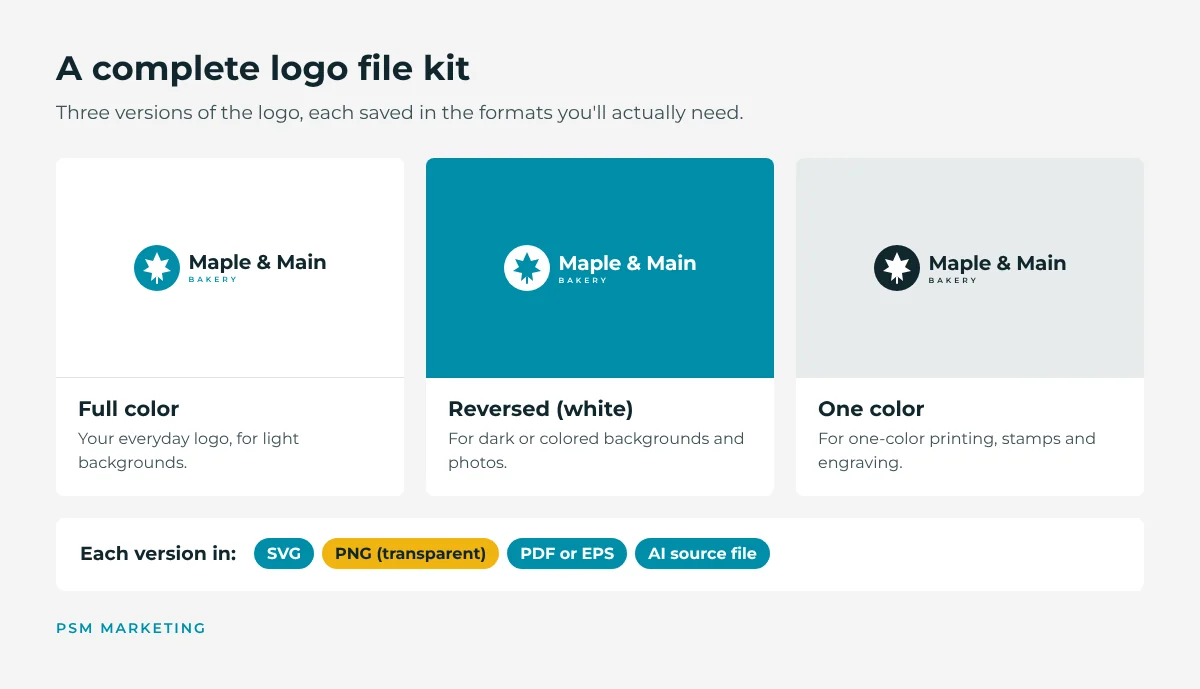
- Three versions: full color, reversed (white) for dark backgrounds, and one color (usually black).
- Each version in several formats: SVG, PNG with a transparent background, and PDF or EPS.
- The editable source file: usually an AI file. This is the one you’ll need if anything ever has to change.
- Your brand colors and fonts: the exact color codes and font names, so new materials match.
If you only have a PNG or JPG of your logo, ask your original designer for the vector files. If the files are lost, a designer can recreate your logo as a clean vector file, and you’ll have it for good.
Quick Answers to Common Questions
Can I change a JPG into a PNG by renaming it?
No. Renaming the file changes only its name, not what’s inside. To convert it, open the image and export or save it as the new format. A JPG converted to PNG still won’t have a transparent background, and it won’t become a vector file.
Why does my logo have a white box around it?
The file was saved as a JPG, or as a PNG without a transparent background. Ask for a transparent PNG, or an SVG for your website.
A printer asked for a vector file, but I only have a PNG. What now?
Check with whoever designed your logo first. If the vector files can’t be found, a designer can redraw the logo as a vector file. It’s a small project that pays off every time you order signs, shirts or printed materials. Need help sorting out your logo files or getting your brand ready for both print and web? See how PSM Marketing helps with branding, or get in touch.